
Combine island seeds
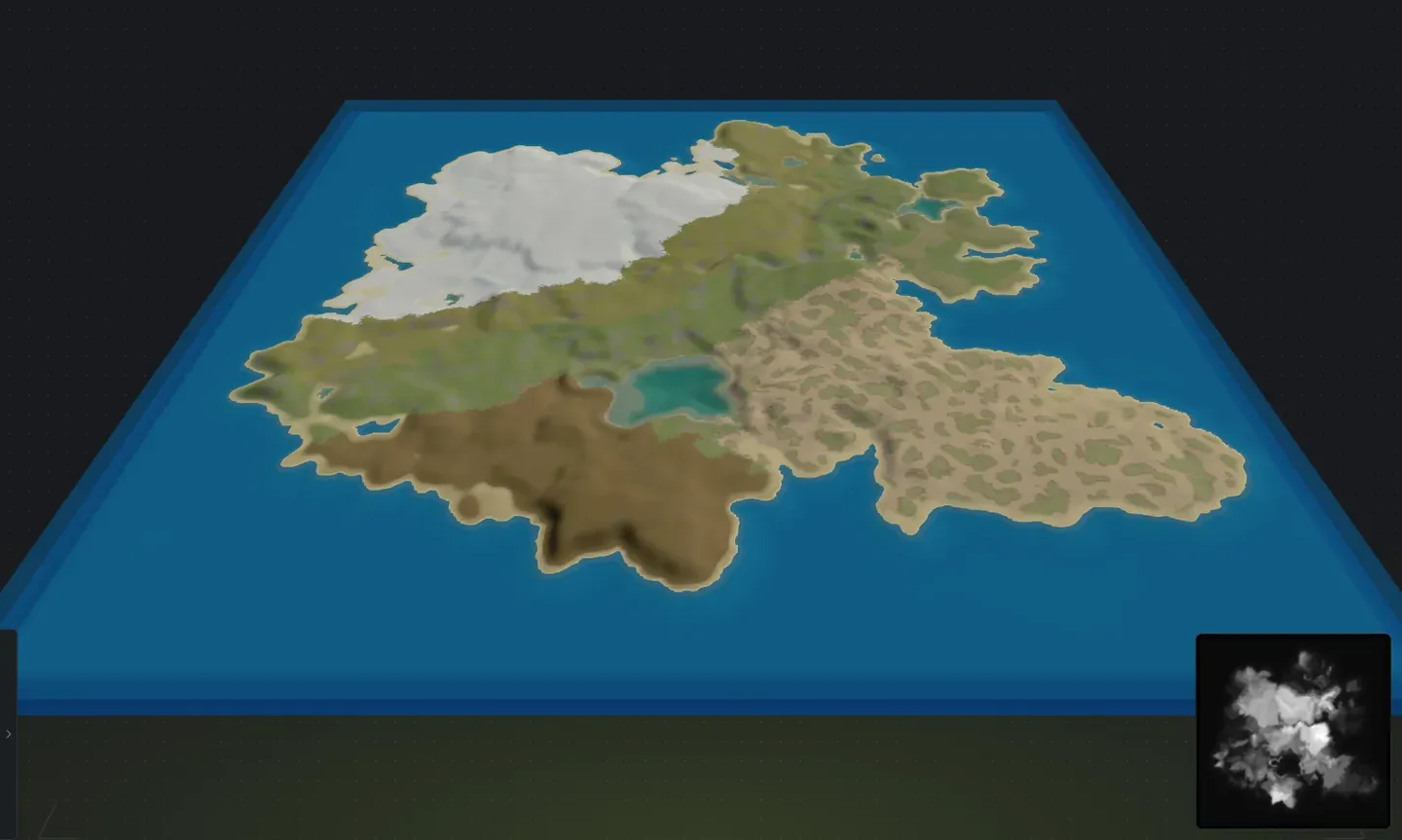
A single island is just the start. Crucible lets you combine multiple islands into one map, so you can build archipelagos, multi-landmass layouts, connected continents and more complex terrain without sculpting it by hand. Each island carries its own seed and slider settings, so you can mix different terrain styles in one map.
How does combining island seeds work?
Section titled “How does combining island seeds work?”- Add islands: click to add another island to your map, or press N. Each island gets its own seed, and you can randomize or paste a saved seed to create its terrain independently.
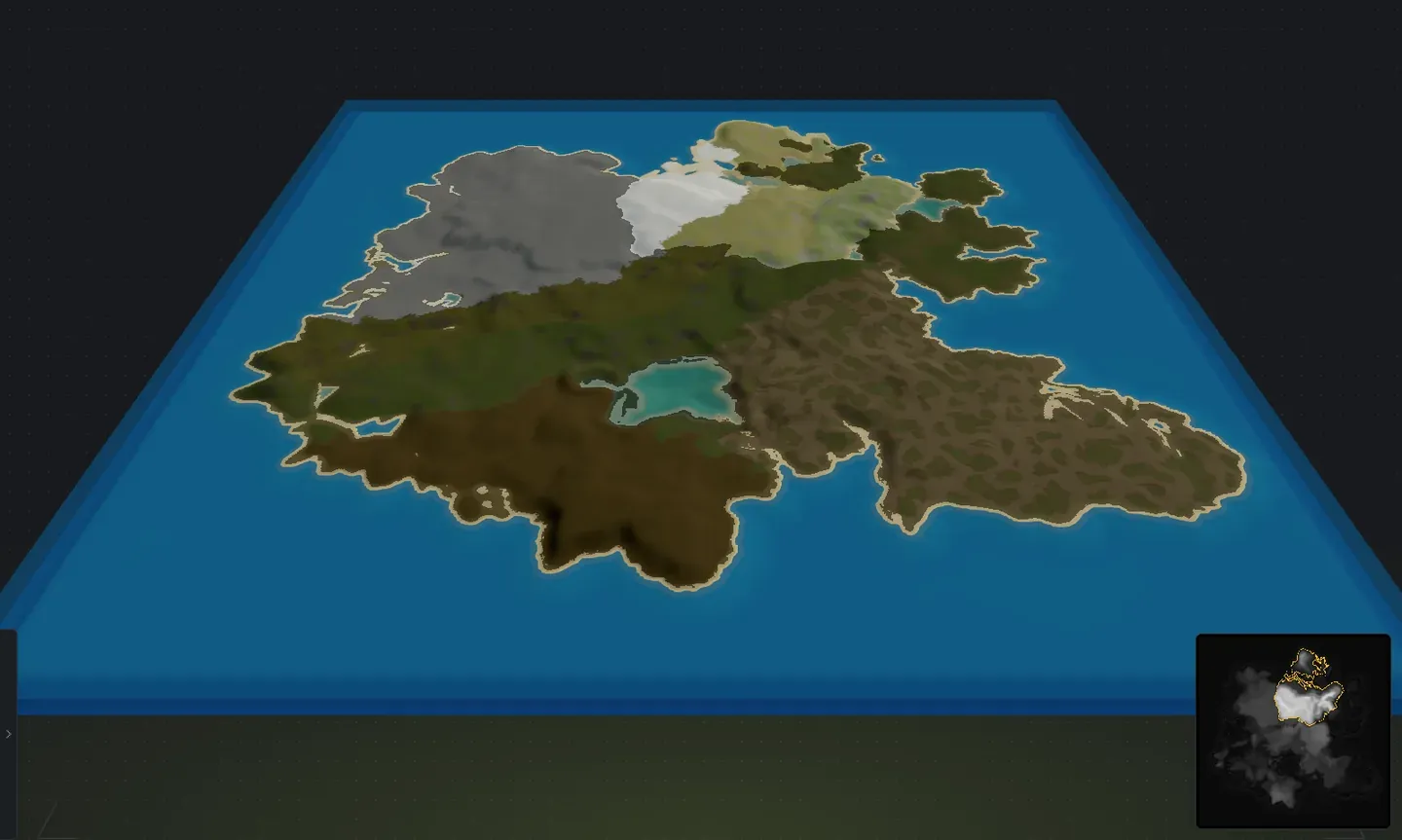
- Select islands: double-click an island to select it and edit its sliders independently. Hold Ctrl (or Shift) and click more islands to add or remove them from the selection, then move, rotate, scale, randomize, or delete them all together. Press Ctrl+A to select every island. Click in the water to deselect, or press Escape.
- Customize each island: each island has its own full set of sliders (landmass, mountains, buildable ground, cliffs, etc.), so you can make a rugged mountain island next to a flat prairie island, or mix any terrain styles you want.
- Position and rotate: drag each island to position it on your map, and spin it to rotate the coastline to face any direction.
- Rotate a whole group: with several islands selected, or with nothing selected, the Rotation slider turns them as one piece. The formation swings around the middle of the selection and every island keeps its own shape and spacing, the same result you would get by turning the map itself. Scaling a group works the same way, growing it from the middle of the selection.
- Flip a selection: Ctrl+H and Ctrl+G mirror what you have selected, left to right and top to bottom. With one island picked it mirrors on its own centre and nothing else on the map moves; with nothing selected the whole map flips, as it always has. Ground textures you painted, sculpting you baked and any baked channel cuts all flip with it. See keyboard shortcuts.
- Terrain scales automatically: terrain height and noise scale with the island size and your map size, tuned around Rust’s procedural generation so the result feels natural in game. Blending happens automatically where islands touch.
- Set your map size first: choose your world size before adding islands, then place islands within it. This ensures all terrain scales correctly to your map.
- Mix island sizes and styles: combine a few larger landmasses with smaller ones for natural variety. A big continent with tiny islands nearby feels more organic than uniform-sized landmasses.
- Reuse saved seeds: drop a saved island or a whole saved group onto the current map from the seed gallery, Swap it for a selected island, or Replace all to start fresh. A merged group keeps its layout and lands selected, ready to drag into place. See seed files for the full gallery workflow.
- Save a layout: select one island (or Select All, Ctrl+A) and save the selection as a seed file, so you can drop the whole multi-island setup, positions and all, into any map later.
- Live preview helps: use the 3D and 2D preview to check how islands blend together and how the overall map layout feels before exporting.
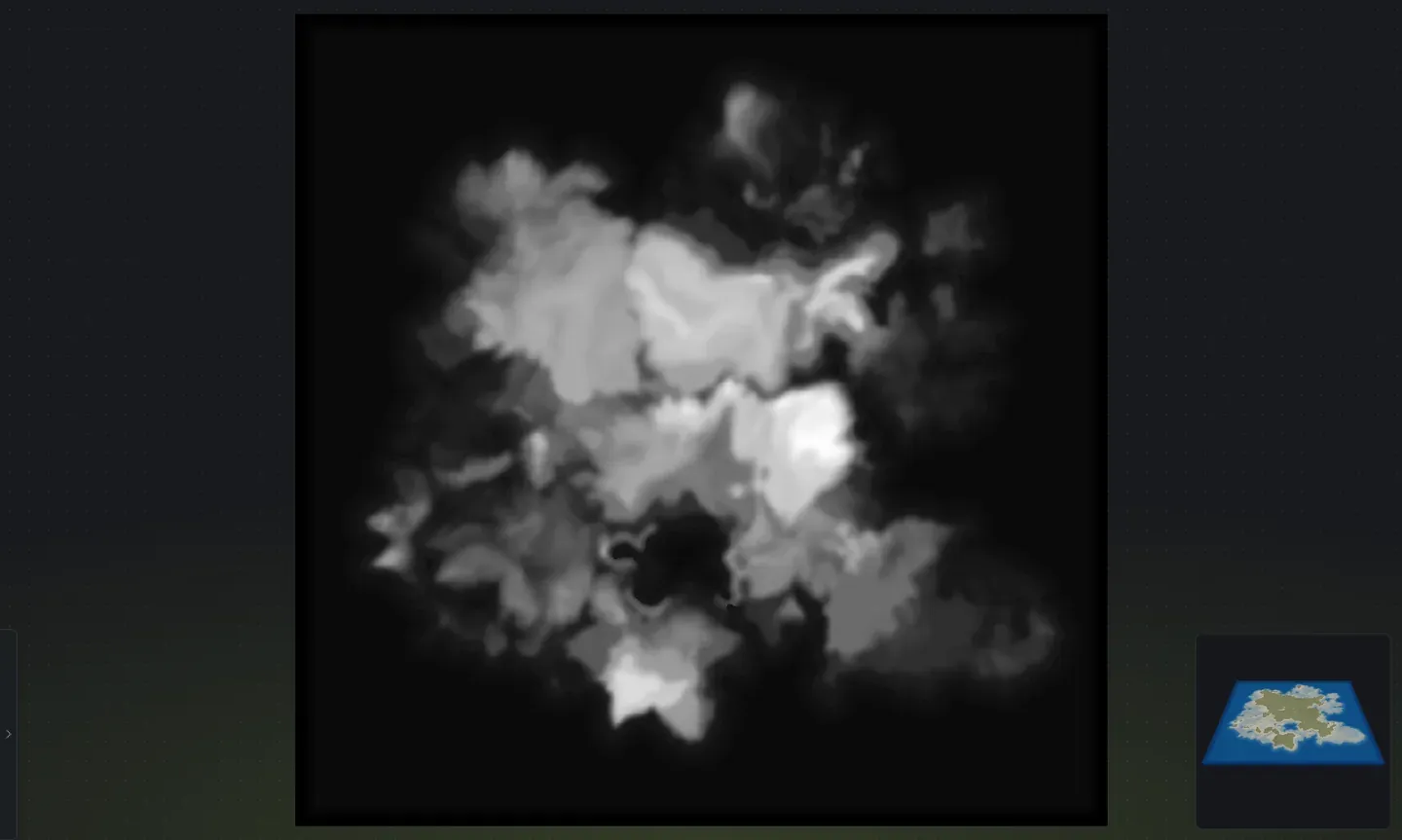
A top-down view shows the layout clearly, with each island as its own landmass:
When the layout looks right in the 3D preview, export it and bring it into RustEdit.