
Wipe, back up, and reuse a world
Wiping is part of running a Rust server, and Crucible Local Server makes it hard to regret. Every wipe is confirmed by typing a word, and the app takes an automatic backup before it touches anything. You can also keep a world you like and put it back on another server later.
Wipes, backups and the file browser live in the Data tab. Saved worlds live in the Map tab, next to the maps they belong to.
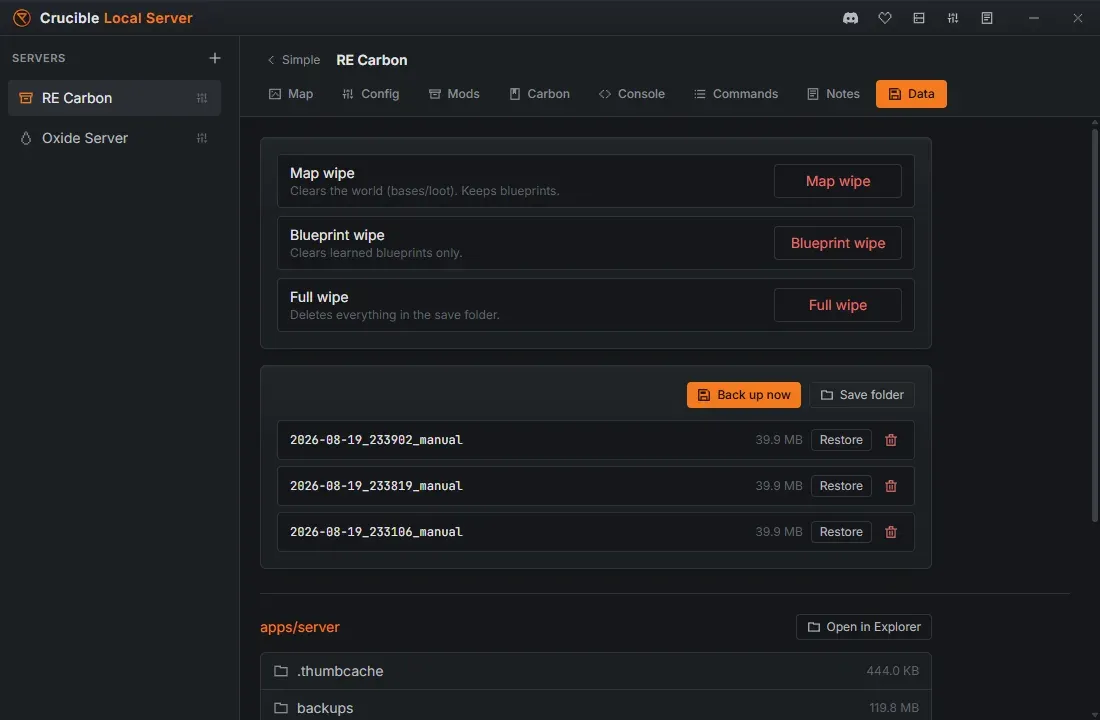
Wipe types
Section titled “Wipe types”Crucible Local Server supports the three standard Rust wipe types:
- Map wipe: clears the world save (buildings, deployables, loot) and regenerates the map, keeping blueprints.
- Blueprint wipe: clears learned blueprints.
- Full wipe: deletes everything in the server’s save folder, which is more than the world and the blueprints.
A full wipe also deletes your config files
Section titled “A full wipe also deletes your config files”The server’s cfg folder lives inside the save folder, so a full wipe takes server.cfg, users.cfg and serverauto.cfg with it. Any line you hand-edited into server.cfg, and any in-game writecfg, does not survive a full wipe. The app’s own row says it plainly: “Deletes everything in the save folder.”
Crucible writes a fresh server.cfg from your Config-tab settings the next time the server starts, so everything the app manages comes back. What does not come back is anything only you knew about: a convar you typed in yourself, a comment, a hand-tuned line. Copy those somewhere first.
If the cfg folder is the part you want to keep, a map wipe followed by a blueprint wipe clears the world and the blueprints while leaving cfg untouched. It is not identical to a full wipe: a full wipe also clears the player database files (deaths, identities, states) that a map wipe deliberately keeps.
The typed confirmation and the auto-backup
Section titled “The typed confirmation and the auto-backup”Because a wipe is destructive, it carries two safeguards:
- You confirm by typing WIPE, so a wipe can never happen by accident.
- The app takes a pre-wipe backup first, so the previous state is saved before anything clears. If that backup cannot be taken, a full wipe is cancelled rather than deleting a world it could not save first.
Restore a backup
Section titled “Restore a backup”The Data tab lists your backups, newest first, with the size of each. Restore puts the server back to that state, after a confirmation that names the backup, since restoring replaces the world the server has now.
A restore is staged before it is applied: the backup is unpacked in full first, and the current world is only replaced once the copy has succeeded. A restore that fails leaves the world you already had.
You can also Back up now at any time, and delete backups you no longer need. Save folder, beside it, opens this server’s own save folder in Explorer, where the live world files sit.
Reuse a saved world on another server
Section titled “Reuse a saved world on another server”A world you built is worth keeping. The Map tab has a saved worlds library underneath the maps library:
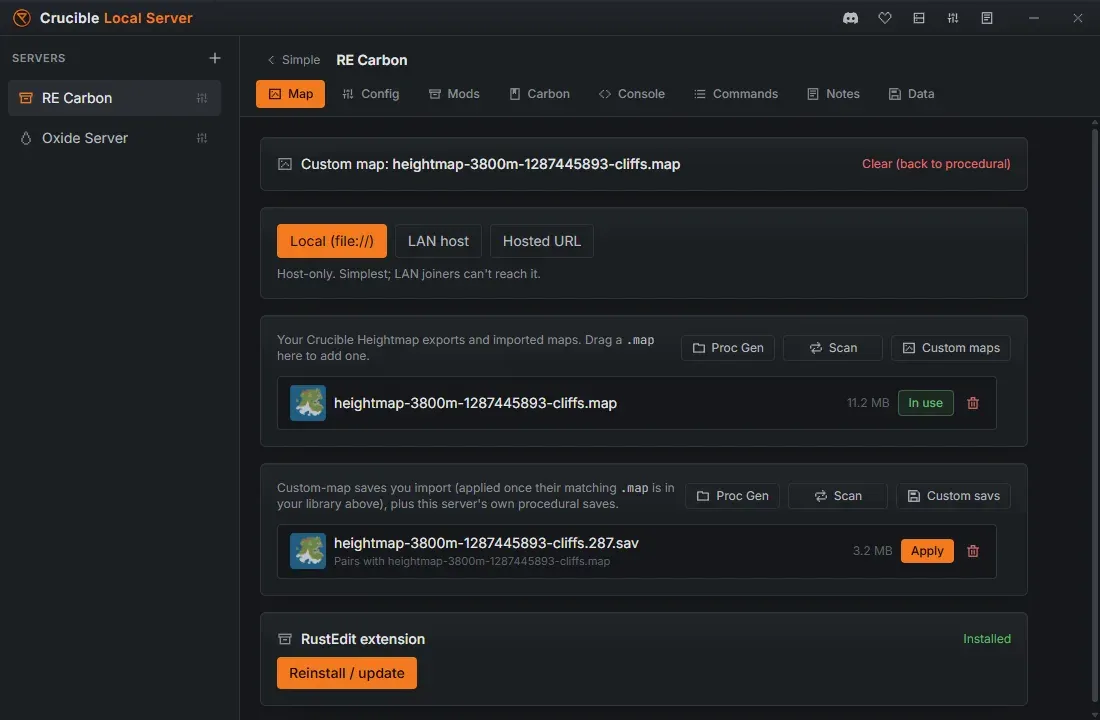
- Drag a
.savonto the window, or open Custom savs, to add one to the library. - Scan picks up this server’s own saved worlds so you can reuse or remove them.
- Apply puts a saved world on the selected server.
A save only loads against the map it was built on, so Apply is only available once the matching .map is in your maps library. The row tells you which map a save pairs with, or that its map is missing. Applying a save backs up the world the server already had first.
Browse the server files
Section titled “Browse the server files”The Data tab also holds a confined in-app file browser of the app’s server tree, with folder sizes and a reveal-in-Explorer button, so you can inspect saves, configs and logs without hunting through disk.
The server must be stopped
Section titled “The server must be stopped”Wipes, backups, restores and applying a saved world all change the save files on disk, so the server has to be stopped first. Stop it from the Quick view, then run the wipe or restore. The app blocks all of them while the server is up, since copying a world Rust is writing to would give you a torn save.
Related
Section titled “Related”- Create your first Rust server.
- Restart your server automatically, which can install Rust updates while the server is down.
- Run a custom map on your server.
- Notes for every server, which can keep a dated log of every wipe and restore.