
Save and share seed files
A seed file (.hmseed) saves the island (or islands) you choose: the seed number, all your slider adjustments, the map size, and the layout of whatever islands you saved. It is not just a number, it carries the whole island configuration, so opening it recreates the exact terrain with all your customizations. Your hand work travels with it too: channel cuts you drew, terrain you sculpted with the brush, and any biome, topology or ground textures you painted. That makes seeds portable, shareable and reusable across projects.
How do I save a seed?
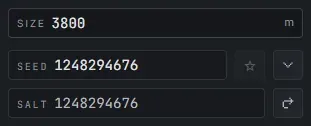
Section titled “How do I save a seed?”A seed saves the island (or islands) you have selected, not the whole map. Pick what you want on the canvas, use the save (star) action, give it a descriptive name, and save it as a .hmseed file in your seeds folder. The file stores everything for that selection: the base seed, your slider values, the map size, and the layout of the saved islands. Descriptive names help, so “mountain-archipelago-3k” beats a generic one.
- One island on the map: there is nothing to pick, so the star saves it directly.
- Several islands: select the island (or the group) you want first. The star stays disabled until you have a selection, so a single island can never accidentally bake the rest of the map into its seed.
- Save the whole map: Select All (Ctrl+A) so every island is selected, then save.
How do I reuse or import a seed?
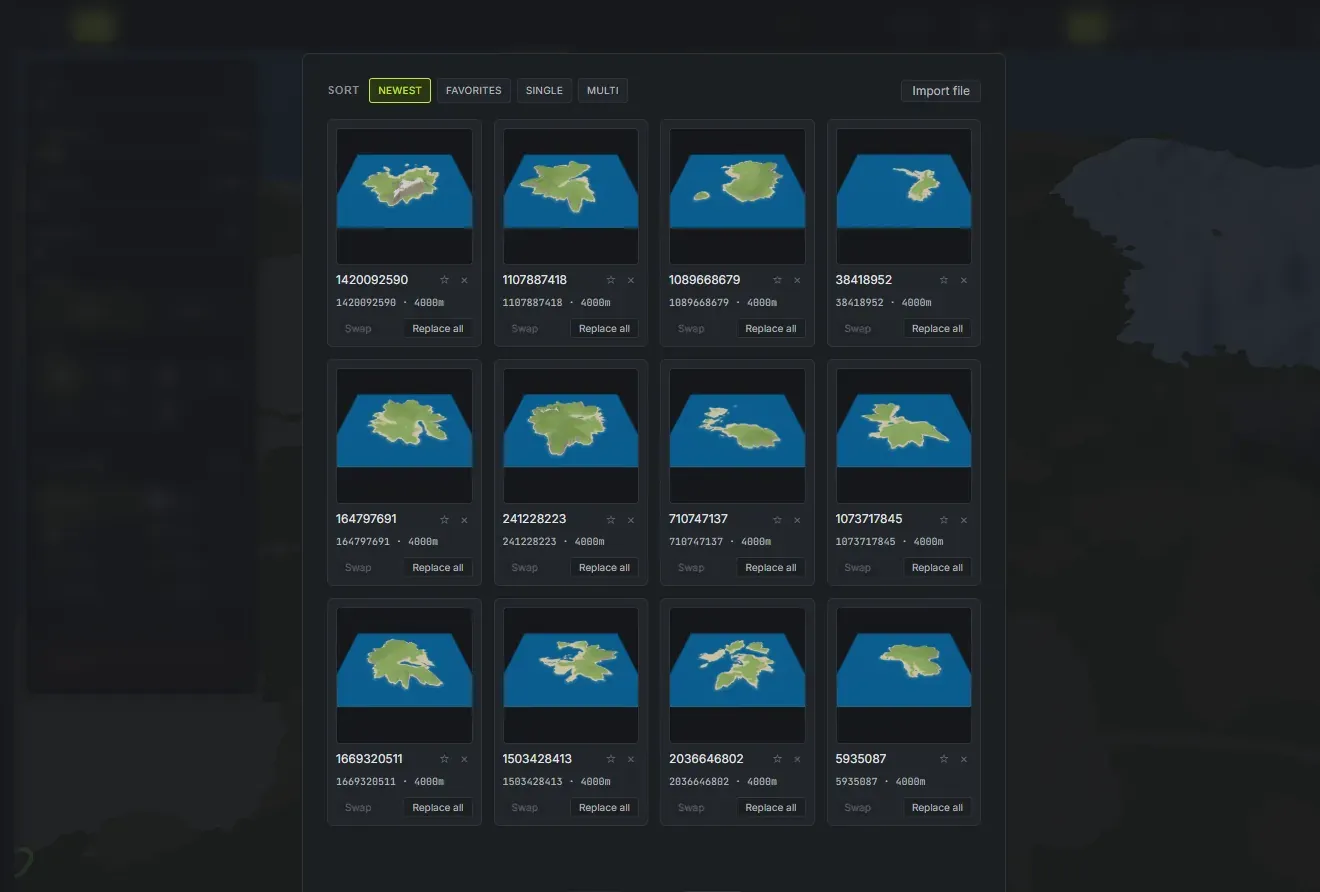
Section titled “How do I reuse or import a seed?”- Open the seed gallery: click the gallery button next to the seed field to see all your saved seeds with thumbnail previews. Each saved seed gives you three ways to use it:
- Click it to add its island (or whole saved group) to your current map, alongside the islands you have already placed. A group keeps its layout and lands selected, ready to drag into position.
- Swap replaces just the island you currently have selected with the seed, leaving everything else untouched.
- Replace all loads the seed as a brand-new map, clearing the current one.
- Favorite and sort: click the star on any saved seed to mark it a favorite. Sort the gallery by Newest or Favorites (both show everything, favorites first), or filter to just your Single-island or Multi-island saves. Favorites are personal to your computer and are not written into the shared
.hmseedfile. - Import from file: drop a
.hmseedfile someone shared with you directly into your seeds folder (see Settings > Folders for location), or use the import button to browse for files.
Use cases
Section titled “Use cases”- Build a personal library: save every good terrain you generate. Build a familiar set of island shapes you’ve worked with in the map editor to speed up your future workflow.
- Share with collaborators: trade seeds with other map makers to collaborate on multi-author maps or to let friends iterate on your terrain.
- Iterate safely: save a seed before trying major slider changes, so you can always reload a good version if you want to go back.
- Version control: save different variants of the same base island with different slider tweaks (e.g., “island-v1-flat” vs “island-v2-mountainous”). Click the star again on an already-saved seed to save a new version with a different name, building a series you can compare side-by-side.