
Install and update the Crucible launcher
Install the launcher
Section titled “Install the launcher”- Download the installer,
CrucibleSetup.exe. - Run it.
- Open Crucible.
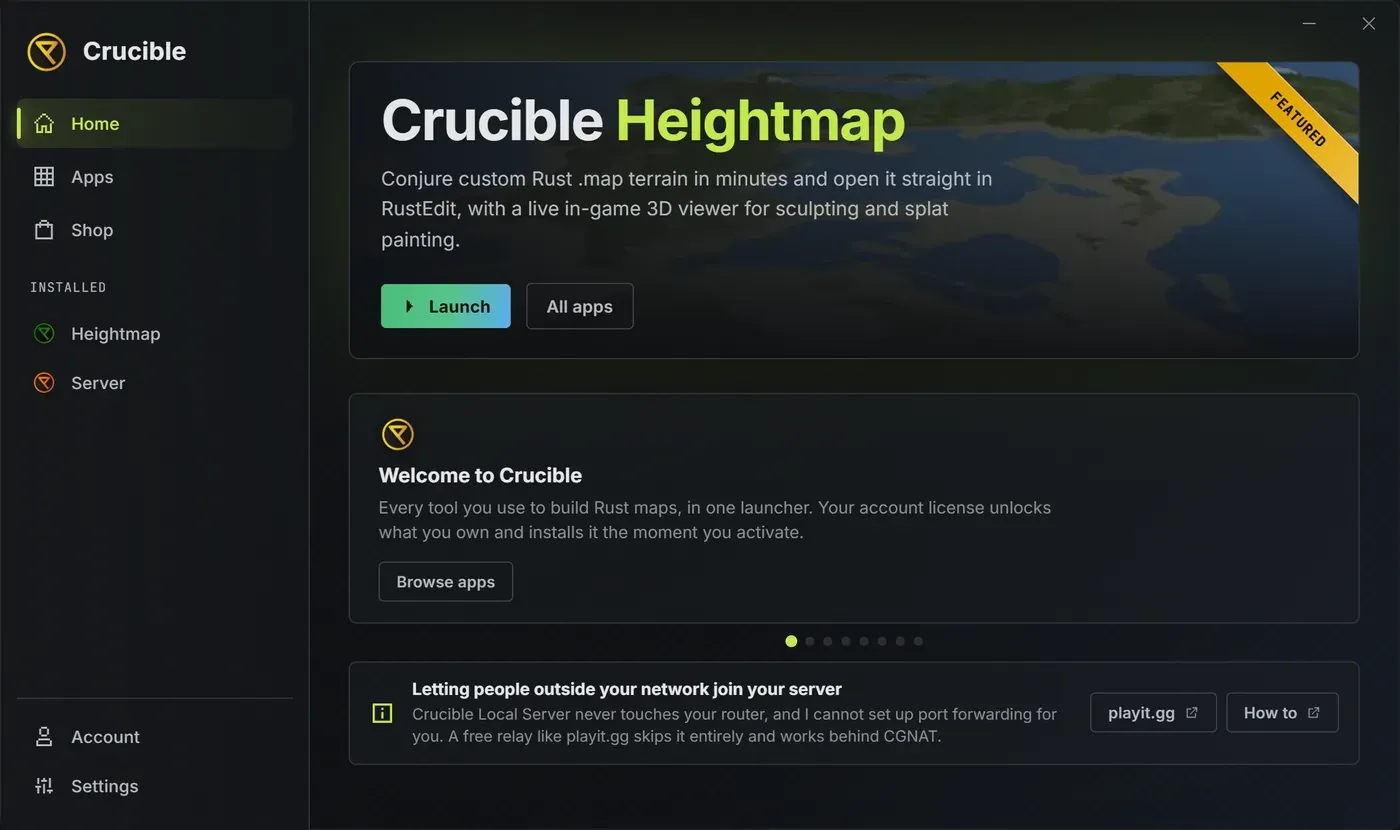
From here you install the apps you want. See install and manage your apps.
The first-run agreement
Section titled “The first-run agreement”The first time you open the launcher it shows the license agreement before anything else. Scroll to the bottom of the text to enable the I have read and agree to the license checkbox, tick it, then click Agree & continue. If the agreement already fits the window without scrolling, the checkbox is enabled straight away.
The other button is Quit, and it closes the launcher. There is no way to decline and keep using it.
You accept once, for the launcher and every app inside it, so the apps you install do not ask again. You are asked again whenever the terms themselves are updated. That has already happened once: the current terms are dated 2026-07-16, and every existing user re-signed on their next launch. You can reread the agreement any time from Settings, under License agreement, and the full text is published at drizzza.com/license.
Opening Crucible twice
Section titled “Opening Crucible twice”Running Crucible.exe again while it is already open focuses the window you have instead of starting a second copy. That includes clicking the desktop or Start shortcut while the launcher is sitting in the tray.
How does the launcher update itself?
Section titled “How does the launcher update itself?”When a new launcher version is published, a gold banner appears across the top of the launcher, on every tab, reading “A new version of Crucible is available.” with an Update Launcher button. Click it and the launcher downloads the new version and restarts into it.
That banner is a notice, not a block. Nothing stops you using the launcher or your installed apps while you leave it sitting there. If you click it right after a release and it says the new version is still publishing, wait a moment and retry: the files are still reaching the download servers.
You can also run the check yourself in Settings, where Check for updates covers the launcher and your installed apps in one click.
”Update required”
Section titled “”Update required””Separate from the banner, a modal titled Update required can appear when you launch an app. It fires only when the app you are trying to open needs a newer launcher than the one you have, and it blocks that app’s launch, not the launcher. Update now updates the launcher and restarts it, then your launch goes through.
App updates are a separate thing again, and you get a say in those: you can keep the version you have. See install and manage your apps.
Uninstall Crucible
Section titled “Uninstall Crucible”Uninstall Crucible from the Windows Apps list (Add or remove programs) like any other program. That runs the launcher’s own uninstaller, which removes the launcher, every app it installed, and their cached files.
- Your
config/folder is always kept, so your settings and keybinds survive. - A Windows Yes/No prompt asks whether to also delete your saved maps, seeds and exports. Answer No to keep them.
- The launcher executable itself is removed on your next reboot, so seeing
Crucible.exestill on disk right after uninstalling is expected. A running program cannot delete its own file, so that one deletion is scheduled instead.
A license is optional
Section titled “A license is optional”The launcher runs without a license. A license only unlocks paid apps like Crucible Heightmap; you activate it in the launcher’s Account panel. See activate and manage your license.