
Install mods and plugins (Carbon and Oxide)
Crucible Local Server installs the two main Rust modding frameworks, Carbon and Oxide, and manages your plugins from the Mods tab. You pick a stack, the app fetches and places the files, and your server loads it on start, with no release archives to download or files to copy by hand.
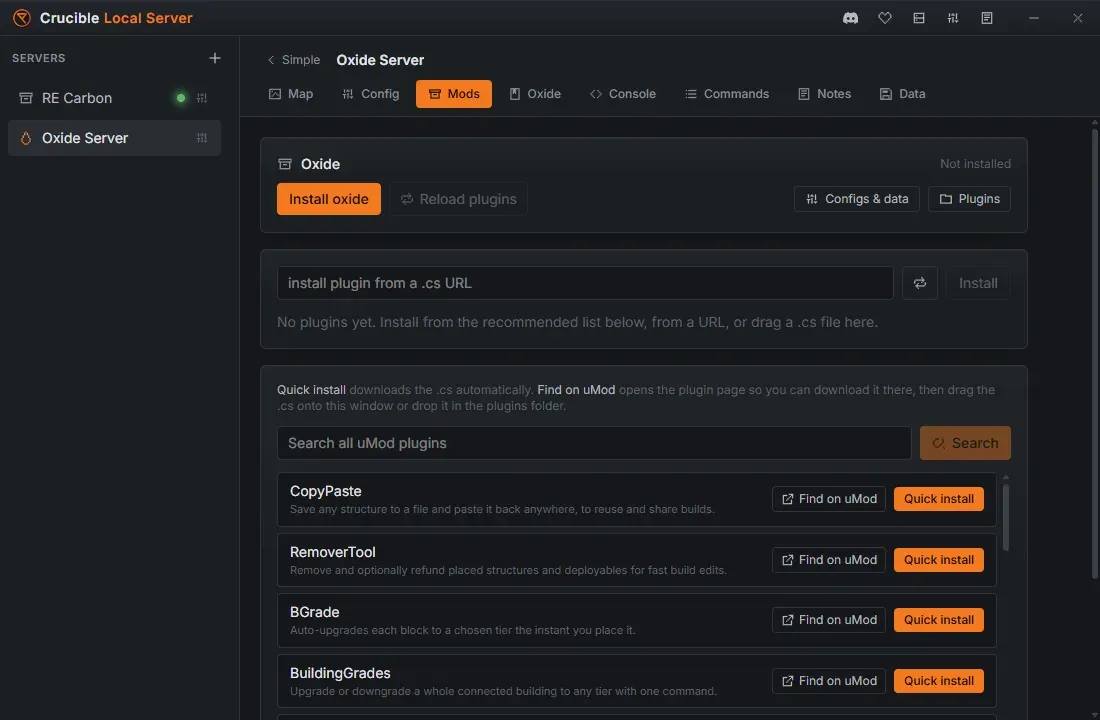
Install Carbon or Oxide
Section titled “Install Carbon or Oxide”The mod stack is chosen when you create a server: pick the Carbon or Oxide preset in the new-server flow. The stack is fixed for that server, and a vanilla server has no Mods tab at all. To run plugins, create a new server on Carbon or Oxide.
- Carbon and Oxide are downloaded and installed straight from their GitHub releases.
- Installing Carbon or Oxide reuses the Rust server files you already downloaded for the same branch instead of fetching the whole server again, so setup is quick.
Once a stack is installed, the server loads it the next time it starts. When a server runs Carbon or Oxide, a matching guide tab appears, labelled Carbon or Oxide after the stack it covers, with the plugin and permission commands you need and buttons to open the plugins, config, and data folders.
Different stacks stay isolated
Section titled “Different stacks stay isolated”Each mod stack gets its own isolated install of the Rust server files, so a modloader never contaminates a vanilla server. Vanilla servers on a branch share one clean install, while Carbon and Oxide each get a separate copy of that branch. A vanilla server, a Carbon server and an Oxide server run side by side without touching each other’s files, and a Carbon server and an Oxide server keep completely separate plugin folders. See installing the Rust server files for how installs are organized by branch and stack.
That isolation is between different stacks. Two servers on the same stack are a different story, and the next section is the one to read before you create your second modded server.
Servers on the same stack share one plugin folder
Section titled “Servers on the same stack share one plugin folder”Two servers on the same Rust version (the same branch) and the same modded loader (both Carbon, or both Oxide) run from one shared installation, and the plugins live in that installation. So they share one plugin folder:
- Install a plugin on one and it appears on the other.
- Delete it from one and it is gone for both.
- Separate plugin sets per server are not possible right now.
Everything else stays separate. The map, the world save, the config, the ports and the admins all belong to each server on their own. It is only the plugins, and their config and data files, that are shared.
The app warns you first
Section titled “The app warns you first”Because two Carbon servers look completely independent in the server list, Crucible tells you before it can surprise you. A modal appears before you create a server that would share a plugin folder, and before you duplicate one, naming the servers it would share with. It has a single OK button: this is a heads-up, not a blocker, and going ahead is often exactly what you want when the two servers are meant to run the same plugin set.
The warning shows at create time and duplicate time only. Nothing in the Mods tab tells you afterwards that the folder you are looking at is shared, so it is worth remembering which of your servers are on the same branch and stack.
If you need separate plugin sets
Section titled “If you need separate plugin sets”Move the second server off the shared installation:
- Put it on a different Rust branch, for example one server on release and one on staging.
- Or put it on the other loader, one Carbon and one Oxide.
Either way the second server resolves to its own install and gets its own plugin folder. Branch and stack are both fixed when a server is created, so this is a decision to make in the new-server flow, not something to change later.
Browse and add plugins
Section titled “Browse and add plugins”With a stack installed, the Mods tab gives you a plugin browser:
- A curated starter list, focused on building, spawning, admin, movement, and cinematic tools for map makers and testers. Each row has a Quick install button that downloads the plugin for you, and a Find on uMod button that opens its page instead if you would rather fetch it yourself.
- Search uMod: search the uMod plugin catalog and Quick install a result in one click. A plugin already in your folder shows an Installed chip in place of the button.
- Install from a
.csURL: paste a link to a plugin source file and the app downloads it into your plugins folder. - Drag a
.csfile in: drop a plugin source file onto the plugins panel and the app installs it.
Plugins pulled from search or a link show an Open on uMod link to their page. A plugin you dropped in from your own computer stays as plain text, so you can always tell where a plugin came from.
Manage plugins
Section titled “Manage plugins”With plugins installed, the Mods tab lists them so you can:
- Enable or disable a plugin (disabling moves it aside so it does not load).
- Reload plugins over RCON with one button while the server is running, so a config change takes effect without a restart.
- Edit configs and data: open the built-in Configs & data JSON editor to change plugin settings and data files in the app, with line numbers, live validation, and one-click formatting.
- Delete a plugin you no longer want.
To edit files by hand instead, the Plugins button opens the plugins folder. The config and data folders open from inside the Configs & data editor, using its Folder button.
Both stacks also create folders past those three, listed with what they hold in the Carbon or Oxide guide tab, and each row there opens its folder:
- Oxide adds
oxide/lang, the translation files. - Carbon adds
carbon/langandcarbon/harmony, the latter for Harmony low-level mods, which is a Carbon extra with no Oxide equivalent.
Related
Section titled “Related”- Create your first Rust server.
- Console, RCON, and admin tools for reloading plugins and running commands live.
- Commands and server vars for the full command reference.
- Wipe and back up your server before testing a new plugin set.