
Keyboard shortcuts
The full list is also in the app under Settings, Keybinds, where every keyboard shortcut below is rebindable: click an action to capture a new key, with a warning if two actions clash, then Save keybinds. Only the mouse and a couple of held modifiers (Alt to erase, Ctrl + right-click to sample height) are fixed. Your keybinds and slider defaults are saved to their own file, separate from the rest of your settings, so you can hand that one file to another user. Button tooltips in the app always show your own current keys, so they stay correct after you rebind anything.
In the in-game view, W, A, S, D and Q, E drive the fly camera, so the app’s default shortcuts deliberately avoid those keys. The in-game view has its own separate camera keybinds, edited in the same Settings section.
The groups below match the groups in the app’s Keybinds editor. The defaults are:
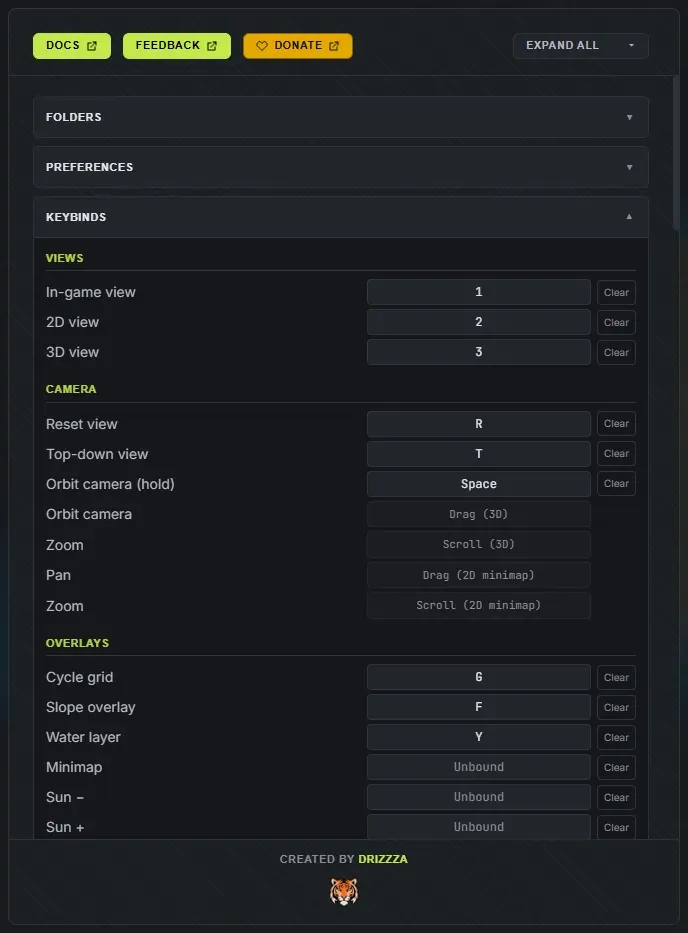
| Key | Action |
|---|---|
| 1 | In-game view |
| 2 | 2D view |
| 3 | 3D view |
Camera
Section titled “Camera”| Key | Action |
|---|---|
| R | Reset view |
| T | Top-down view, snap the 3D camera straight overhead for a flat map-wide look (R returns to the normal angle) |
| Space | Hold to orbit the camera (works while a brush panel is open, so you can reposition mid-paint without laying a stroke) |
Overlays
Section titled “Overlays”| Key | Action |
|---|---|
| G | Cycle grid (off, lines, lines + labels) |
| F | Slope overlay |
| Y | Water layer, hide the ocean surface to inspect the seabed |
| (unbound by default) | Minimap, hide or show the corner map |
| (unbound by default) | Sun down or up |
Map and islands
Section titled “Map and islands”| Key | Action |
|---|---|
| C | Conjure a new map |
| N | Add island |
| H | Reroll salt, roll new inner terrain (and a new world) without moving the coastline |
| Delete | Delete the selected island(s) |
| Ctrl + A | Select all islands |
| Ctrl + G | Flip vertical |
| Ctrl + H | Flip horizontal |
With an island selected, a flip mirrors that island in place, keeping its shape, its paint and any baked channel cuts. With nothing selected it takes the whole map: your painted splats, the biomes and topology, and the islands all mirror together, and the position and rotation sliders keep matching the map you can see. Either way it is instant, and it does not reroll your world.
Brushes
Section titled “Brushes”These apply to whichever brush panel is open: the terrain brush, the splat brush, or the biome and topology brushes.
| Key | Action |
|---|---|
[ or ] | Shrink or grow the brush |
| O or P | Rotate the brush footprint (5 degrees per press). It turns whichever brush is open, the terrain brush’s stamp included |
| Tab or Shift + Tab | Next or previous target: the ground texture, the biome, or the topology layer, depending on which brush is open |
| Alt (held while painting, fixed) | Erase |
| (unbound by default) | Hardness down or up |
| (unbound by default) | Spacing down or up |
| (unbound by default) | Clear layer |
| (unbound by default) | Cycle falloff: smooth, linear, sharp, soft |
| (unbound by default) | Cycle stamp shape |
| (unbound by default) | Cycle symmetry: off, X, Y, quad |
Terrain brush
Section titled “Terrain brush”| Key | Action |
|---|---|
| B | Brush mode |
| (unbound by default) | Strength down or up |
| Ctrl + right-click (flatten brush, fixed) | Sample height |
| Ctrl + scroll wheel (fixed) | Brush size, in the 3D view and the in-game view |
| Alt held (fixed) | Run the brush backwards: raise lowers, bluff softens, pucker digs, ripple inverts |
| Key | Action |
|---|---|
| V | Splat mode (opens or closes the splat panel) |
| X | Swap to blend, toggles the brush between your current type and the Blend smudge |
| Alt + right-click (fixed) | Eyedropper, pick the ground texture under the cursor |
World layers
Section titled “World layers”| Key | Action |
|---|---|
| J | Biome brush |
| K | Topology brush |
| L | Channels, cut water clean across the map |
| Alt + right-click (fixed) | Eyedropper, pick the biome or a visible topology layer under the cursor |
Only one of these docks is open at a time, so picking one closes whichever was up.
Neither brush generates a world for you. On a generated map they edit the derived layers; on a bare map the first stroke starts a blank canvas you paint yourself.
History
Section titled “History”Undo and Redo auto-repeat while the key is held. Both pause while a panel is open or a text field is focused, so typing in a box never fires them (your system’s own text undo still works).
| Key | Action |
|---|---|
| Ctrl + Z | Undo |
| Ctrl + Shift + Z | Redo |
Project
Section titled “Project”| Key | Action |
|---|---|
| Ctrl + N | New project (prompts to save unsaved changes first, then clears to a fresh random island) |
| Ctrl + S | Save project (re-saves the open project, or opens the Projects panel to name it the first time) |
| Ctrl + Shift + S | Save project as (opens the Projects panel ready to name a new project) |
| (unbound by default) | Export now, run the export without opening the panel |
| (unbound by default) | Save as seed |
Panels
Section titled “Panels”| Key | Action |
|---|---|
| 4 | Custom island panel, draw or import an island shape |
| 5 | Open Settings |
| 6 | Open Export |
| 7 | Open Projects |
| 8 | Open Saved Seeds |
| 9 | Worldgen panel |
| I | Island randomizer drawer |
| Escape | Close the open panel, otherwise deselect everything |
Drawing pads
Section titled “Drawing pads”The shape pad and the channel pad take the keyboard while they are open, so none of the shortcuts above fire behind them. A bare letter cannot conjure a new map or flip a view out from under your drawing, and undo belongs to the pad rather than the map.
Shape pad:
| Key | Action |
|---|---|
| 1 to 6 | Pick a brush: round, coast, blobs, spit, coves, fill |
| E | Erase, every brush takes land away instead of adding it |
[ or ] | Brush size (Ctrl + scroll over the pad does the same) |
| S | Cycle symmetry: off, X, Y, quad |
| G | Grid |
| Space (held) | Pan the pad |
| Tab | Switch between the Draw tab and the Map preview tab |
| Ctrl + Z, Ctrl + Shift + Z | Undo and redo your drawing |
| Enter | New project from this shape |
| Escape | Close the panel |
Channel pad:
| Key | Action |
|---|---|
[ or ] | Draw width, in metres |
| Ctrl + Z, Ctrl + Shift + Z | Undo and redo a stroke |
| Enter | Apply |
| Escape | Cancel |
Sliders
Section titled “Sliders”| Input | Action |
|---|---|
| Click or drag | Set value |
| Ctrl + drag | Fine, one step per pixel |
| Tab | Focus the slider (enables arrow keys) |
| Arrow keys | Step by one |
| Ctrl or Shift + arrow | Step by ten |
| Home or End | Minimum or maximum |
| Double-click slider | Reset to default |
| Double-click value | Type a value |
Mouse on the canvas
Section titled “Mouse on the canvas”| Input | Action |
|---|---|
| Double-click (2D or 3D) | Select island |
| Ctrl or Shift + click an island | Add or remove it from the selection (select several at once) |
| Ctrl + A | Select all islands |
| Click water | Deselect all |
| Drag a selected island | Move it (moves the whole selection together; painted textures follow) |
| Drag (3D) | Orbit the camera |
| Scroll (3D) | Zoom |
| Drag (2D minimap) | Pan |
| Scroll (2D minimap) | Zoom |