Launcher settings, tray, and startup
The Settings view controls how the launcher behaves on your desktop: where it goes when you close it, whether it starts with Windows, and how it handles updates and storage. If you are setting it up for the first time, start with install and update the Crucible launcher.
Preferences
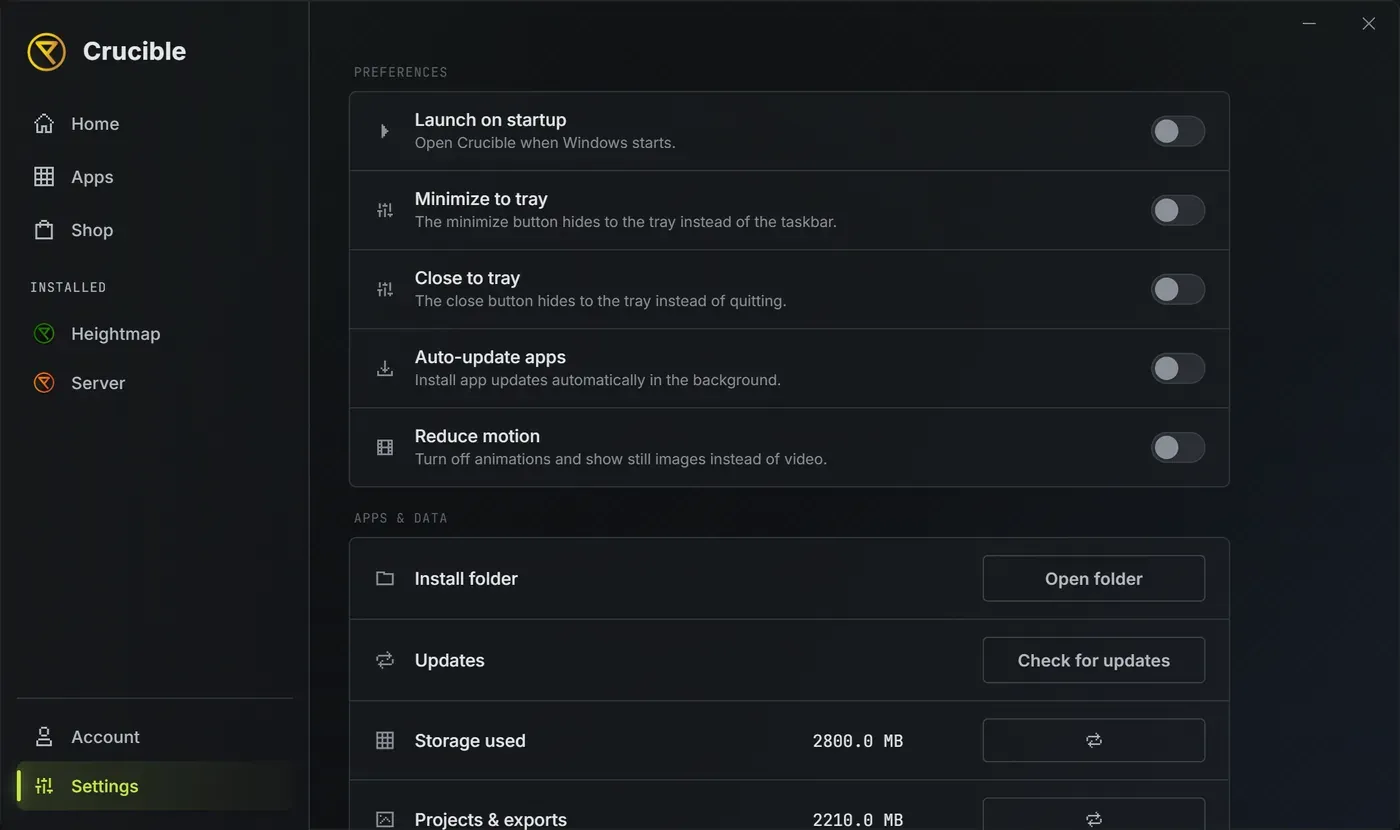
Section titled “Preferences”Five toggles, all off until you turn them on:
- Launch on startup. Opens Crucible when you sign in to Windows. Leave it off to keep your startup clean.
- Minimize to tray. The minimize button hides the launcher to the tray instead of the taskbar.
- Close to tray. The close button hides the launcher to the tray instead of quitting.
- Auto-update apps. Installs app updates in the background. It leaves alone any app where you chose to keep the version you have. See install and manage your apps.
- Reduce motion. Switches off the launcher’s animations and shows still images in place of video.
Apps and data
Section titled “Apps and data”- Install folder. Open folder opens the folder your apps live in.
- Updates. Check for updates covers every installed app and the launcher itself in one click.
- Storage used. Your apps, your data, and cached files as one total. The rescan button re-reads it.
- Projects and exports. The slice of that total which is your own work, with its own rescan button.
- Temp files. Clean temp files clears caches and old logs. Your settings, license, and maps are untouched.
Help and support
Section titled “Help and support”- Community. A link to Discord.
- Documentation. A link to these docs.
- Support log. Open log opens the launcher’s activity log, ready to attach to a support ticket.
- License agreement. View shows the agreement you accepted on first run.
Launcher version shows the version you are running.
The tray
Section titled “The tray”The launcher uses the Windows system tray. Click the tray icon to bring the window back, or right-click it for Open Crucible, a Launch row for every app in the catalog, Check for updates, and Quit.
The menu lists every app the launcher can deliver, not only the ones you have. A Launch row for an app you have not installed is greyed out rather than hidden, so a fresh install showing two greyed rows is normal. Install the app and its row becomes clickable.