Install and manage your apps
The Apps library is where you install and uninstall Crucible apps. Each one is delivered as its own program that the launcher downloads, installs, and launches for you.
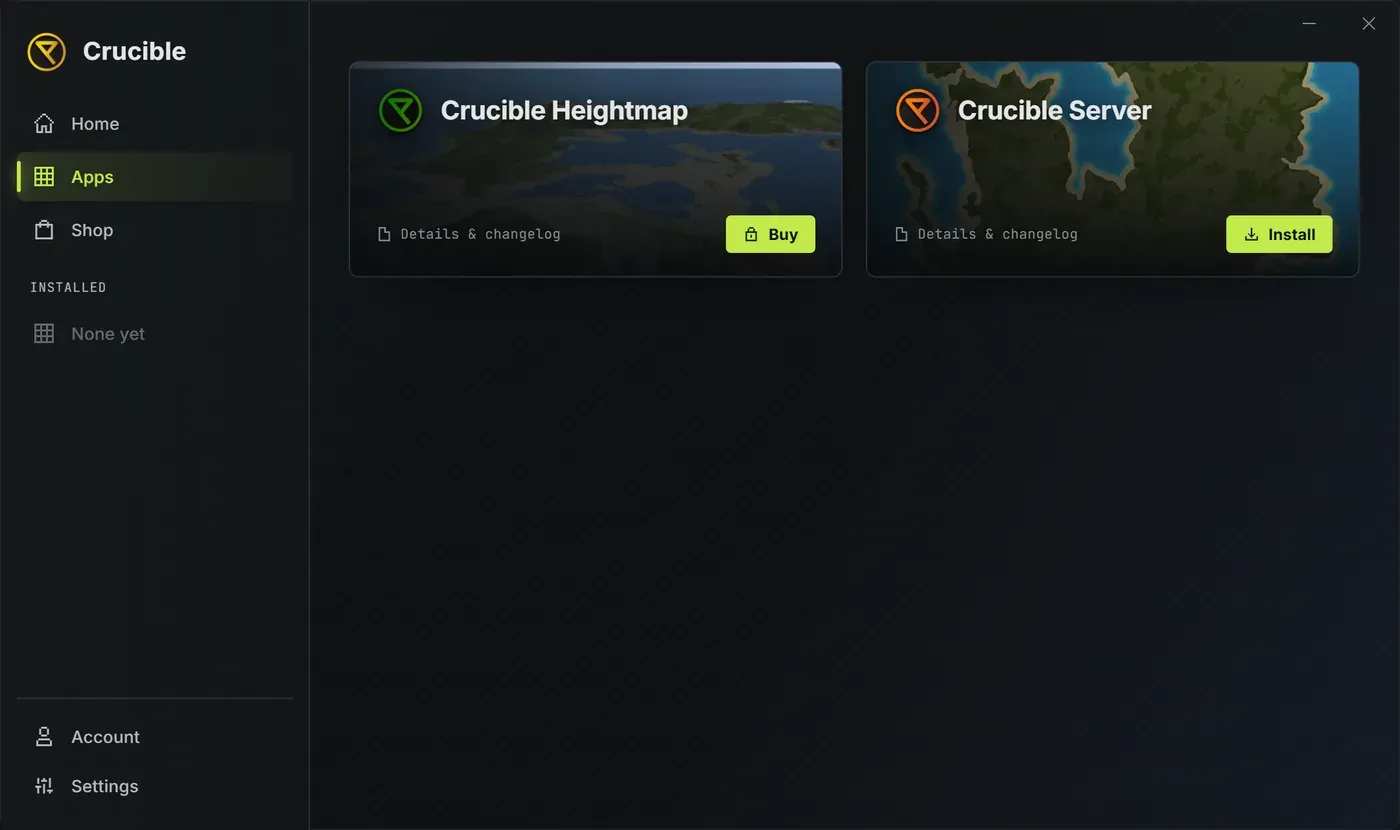
The library holds two apps today. Crucible Heightmap is paid, so its tile shows Buy until your license is active. Crucible Local Server is free and installs with no key at all.
Install an app
Section titled “Install an app”- Open the launcher and go to the Apps library.
- Pick an app to open its detail page.
- Click Install. The launcher downloads the app, verifies the files, and sets it up.
- Click Launch when you want to run it.
Installing does not start the app. The button flips from Install to Launch when it finishes, so you open it when you are ready.
While a download runs, an Installing progress bar appears at the bottom of the launcher with the percentage, the current speed, and how much time is left. There is one bar for the whole launcher, not one per tile, and it clears itself a moment after the download completes. It covers app updates too.
Installs, updates and license checks all need the internet. If your connection drops, a strip appears at the bottom of the window reading “You’re offline. Installs, updates and license checks need a connection.” It disappears on its own when you are back online.
What is on an app’s detail page?
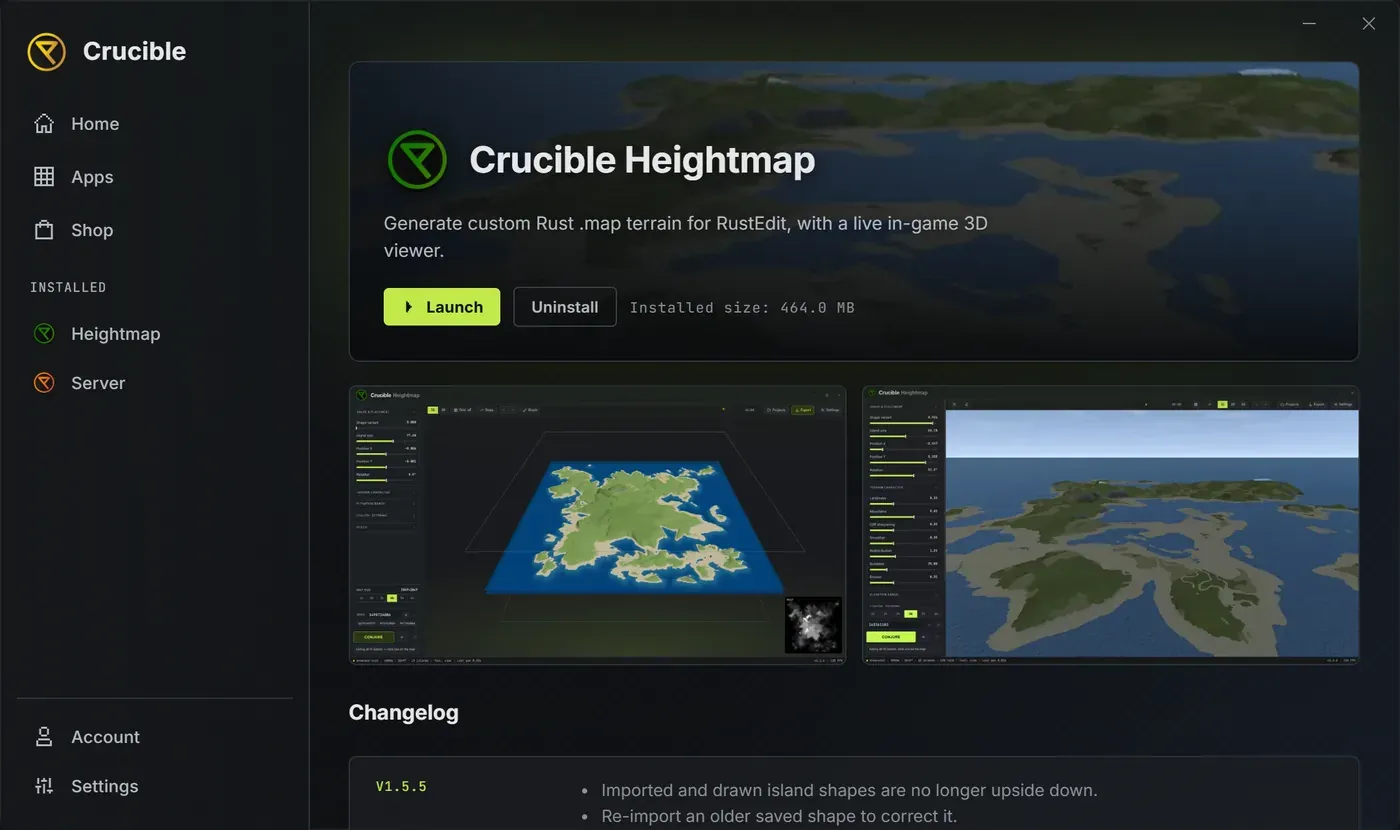
Section titled “What is on an app’s detail page?”- The app banner and description, with Launch and Uninstall once the app is installed, and an Installed size readout beside them.
- A screenshot gallery, for Crucible Heightmap.
- The changelog, newest first. The five most recent updates show, and a Show N older updates button expands the rest.
Update an app
Section titled “Update an app”When an app has a newer version, an Update button appears on its tile and detail page, and a badge appears on the Apps tab. Click it and the launcher installs the update, then opens that app’s detail page so you can read what changed. It does not start the app for you.
If you click Launch while an update is waiting, the launcher asks first:
- Update now installs it and takes you to the app’s page.
- Launch this version opens the version you already have.
Launch this version is remembered for that app alone, and only for that version. The launcher stops asking until a newer release ships, then it asks once more. A skipped app is also left alone by Auto-update apps and by Check for updates in Settings, so nothing moves it behind your back. Click its Update button whenever you decide you want it.
Updates to the launcher itself work differently: a gold banner offers them, and a separate Update required modal can block a single app’s launch when that app needs a newer launcher. See install and update the Crucible launcher.
Uninstall an app
Section titled “Uninstall an app”Open the app’s detail page and click Uninstall. A confirmation appears, and your saved data is kept by default, so reinstalling picks up where you left off. If the app is paid, your license stays active too, and you can reinstall it from your account any time.
To remove your data as well, tick the data box in the confirmation. A red warning appears under it spelling out exactly what is erased and that it cannot be undone, and the confirm button turns red and changes from Uninstall to Delete everything.
- Crucible Heightmap has one box: Also delete my projects, seeds, exports and settings.
- Crucible Local Server has two. The first is Also delete my servers, maps, plugins and backups. The second, Also delete my notes, is deliberately separate: your notes are stored outside the app folder and survive an uninstall, so clearing out old test worlds never takes your notebook with it.
Only the first box carries the red warning and turns the button into Delete everything. Tick Also delete my notes on its own and the button stays green and still reads Uninstall, because the app’s own data is being kept. Tick each box only if you mean it.
Each app’s full guide
Section titled “Each app’s full guide”- Crucible Heightmap, the paid Rust map generator: see what is Crucible Heightmap? and install Crucible Heightmap.
- Crucible Local Server, the free local Rust server manager: see what is Crucible Local Server? and its install guide.
To activate a Crucible Heightmap license, see activate and manage your license.