
What is the Crucible Launcher?
The Crucible launcher is the hub for the Crucible apps. It is one Windows app that downloads, updates, and launches every Crucible tool, so you install the launcher once and pick the apps you want from inside it.
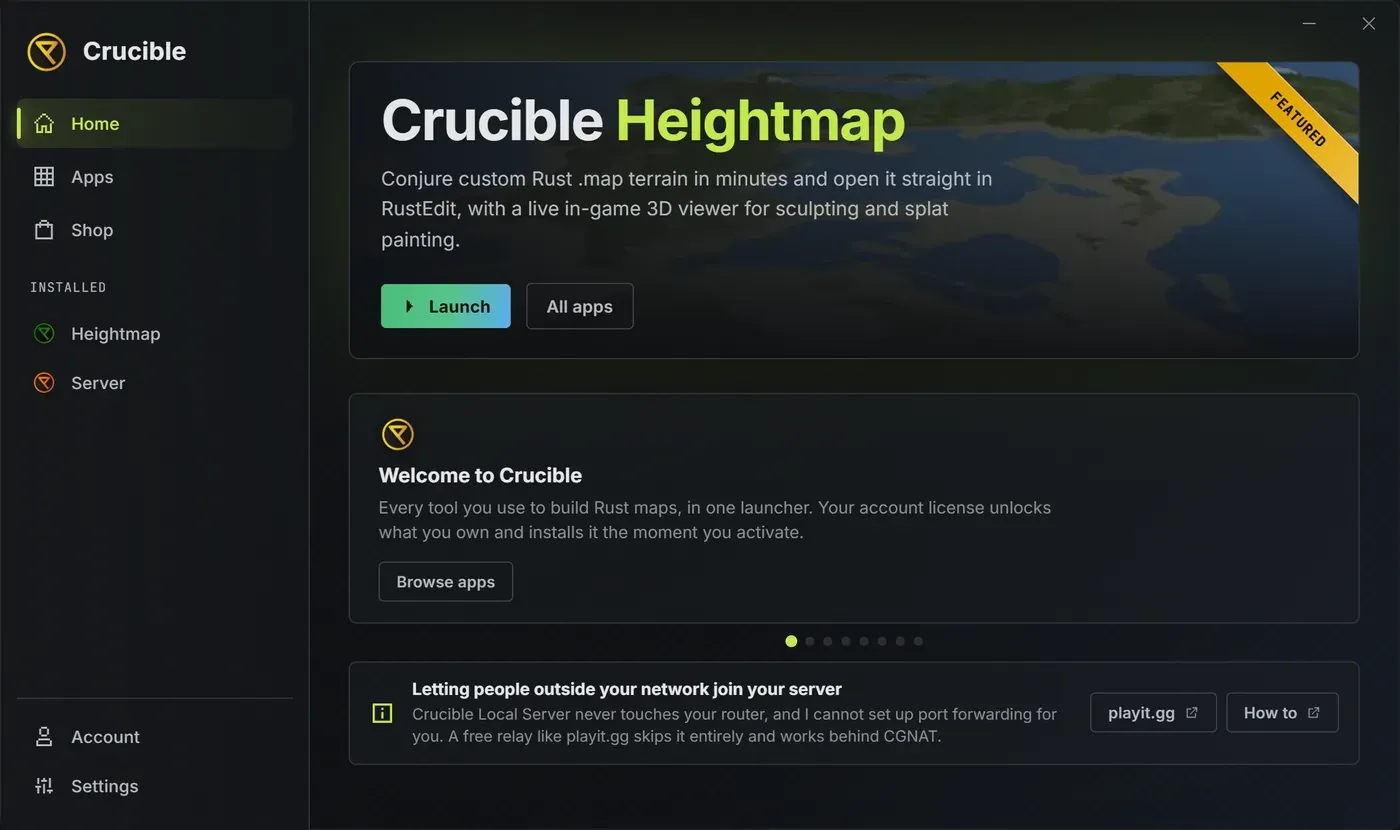
The launcher runs without a license. A subscription only unlocks the paid apps it hosts, currently just Crucible Heightmap; the launcher itself and Crucible Local Server need no key. You activate a Heightmap subscription in the launcher’s Account panel and it unlocks that one app. See activate a license and manage your account.
What the launcher does
Section titled “What the launcher does”- Installs each app on demand, downloads and verifies its files, then launches it for you. See install and manage your apps.
- Updates your installed apps with one click, or automatically if you turn on auto-update in Settings.
- Holds your license and device usage in the Account panel.
- Buys and manages your subscription in the built-in Shop, without leaving the launcher. See activate a license and manage your account.
- Lives in the system tray, can minimize or close to tray, and can start with Windows. See launcher settings, tray, and startup.
The apps it hosts
Section titled “The apps it hosts”Every Crucible app is delivered as its own program. Today the launcher hosts two:
- Crucible Heightmap, the paid Rust map generator that exports a ready-to-open Rust
.mapfile for RustEdit. - Crucible Local Server, the free tool for running and managing a local Rust dedicated server.
Getting around the launcher
Section titled “Getting around the launcher”Five tabs sit on the left rail:
- Home, the featured app plus a set of rotating info cards covering the apps, the Shop, the docs, and the community. The cards advance on their own and pause when you hover them. A fixed note underneath answers the most common Crucible Local Server question: the app never touches your router, so letting people outside your network join means forwarding the port yourself or using a relay. See can players outside my network join my server.
- Apps, your library. Install, update, uninstall, and open any app’s detail page. See install and manage your apps.
- Shop, where you buy a plan and check out without leaving the launcher. Every Buy and Get Plan button in the launcher lands you here with that app already picked. Donate sits under the apps in the same list, for optional support that changes nothing about your license. See support Crucible.
- Account, your license key, device usage, and subscription controls.
- Settings, tray, startup, updates, and storage. See launcher settings, tray, and startup.
Your installed apps also appear on the rail under Installed. Clicking one there does two things at once: it opens that app’s detail page and launches the app. An item in that dock carries a ! badge when an update is waiting for it.
The launcher is a compact fixed window with minimize and close buttons, and it can tuck into the system tray when you want it out of the way.
Where to get it
Section titled “Where to get it”Download the installer, CrucibleSetup.exe, and run it. For the full walkthrough, see install and update the Crucible launcher.