
Console, RCON, and admin tools
Crucible Local Server is where you drive a running server. It gives you a streamed console, a two-way web-RCON command line with quick actions, saved macros and Tab-autocomplete, and one-click admin setup. Everything here works while the server is up.
The live console
Section titled “The live console”When a server is running, the Console tab streams its output live, the same view you would get from the dedicated server window. It also includes:
- A command input to send commands to the server over RCON.
- Up and down arrow history, so you can recall and resend commands.
- Tab-autocomplete: start typing a command or convar name and a prefix-matched list appears, Tab or click to accept.
- Macro buttons you save yourself, for the commands you run all the time.
- Copy to put the last 50 console lines on your clipboard, ready to paste into a bug report or a note. It toasts how many lines it copied.
- Open log to open the logs folder in Explorer, where every server’s raw log file lives.
The Console tab also carries its own row of quick actions, aimed at the server rather than the world:
- Save: write the world to disk now, so a crash cannot cost you the last few minutes.
- Save cfg: have the server write its current settings back out to its config file.
- Players: list who is connected.
- Say: send a message into server chat.
- Reload plugins: on a Carbon or Oxide server only, reload every plugin.
These sit alongside the Quick view’s own set (time, weather, airdrops), which is aimed at the world instead.
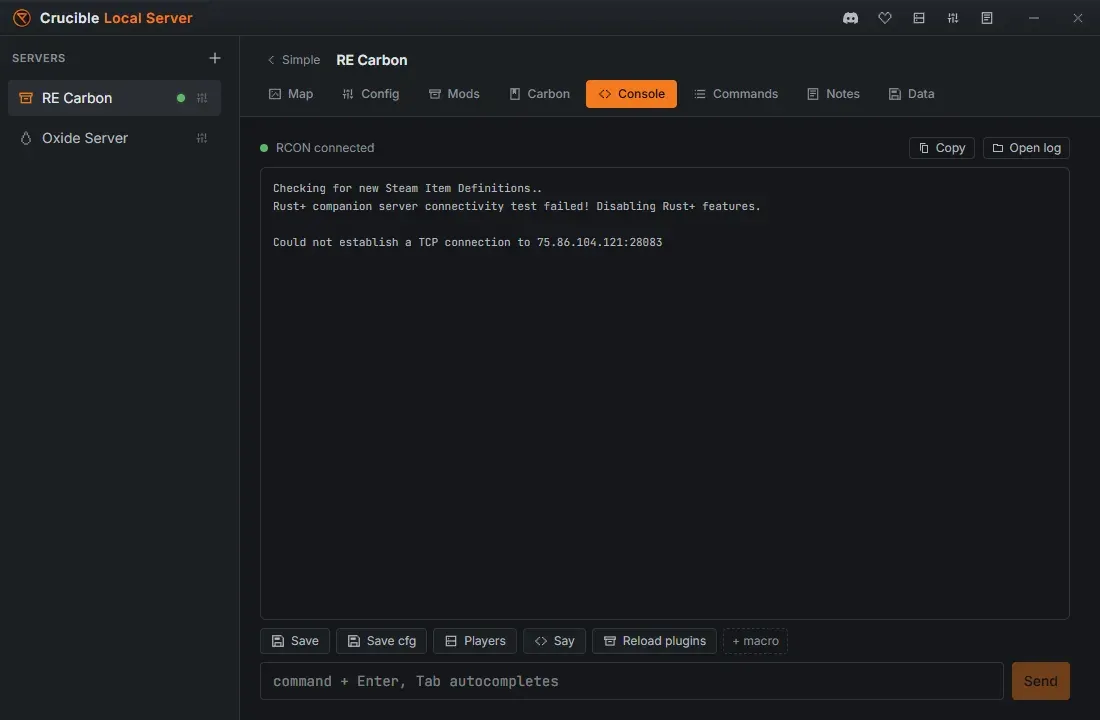
You can select console text with the mouse and copy just the lines you want.
The Quick view console peek is masked
Section titled “The Quick view console peek is masked”The Quick view carries a small peek at the last console lines, and its output is masked by default behind an eye toggle. A Rust boot log carries IP addresses and map-cache URLs, so a screenshot or a stream would otherwise leak them without you noticing. Click the eye to read it, click it again to hide it.
The full Console tab is never masked, and the command input is not masked either, since that is what you typed.
Web-RCON and quick actions
Section titled “Web-RCON and quick actions”Crucible Local Server connects to the server over web-RCON automatically when it starts, so the console is two-way with no manual setup. The Quick view adds one-click quick actions for the things you reach for most:
- Set the time: Noon, Sunrise, Sunset, or Night.
- Set the weather: Clear, Rain, Fog, or Storm.
- Trigger an airdrop or a patrol helicopter.
- Save the server, or heal all players.
- Run any command from an inline command bar without opening the Console tab.
Quick actions light up at Live, the point the world is actually joinable. For the full library of admin, creative and cinematic commands and every server variable, see commands and server vars.
Keep an RCON password set
Section titled “Keep an RCON password set”Web-RCON, the quick actions, the live stats and the scheduled restart all run over RCON, and RCON only turns on when the server has an RCON password set. Crucible generates one for every new server, so leave one set.
Rust also refuses to run RCON on a handful of common passwords (password, 123456, changeme, qwerty and a few others). Crucible will not let you save one, because a server with RCON switched off looks like it is working while the console, the quick actions and the automatic restart all quietly do nothing. Set or regenerate the password in Config, where it is masked with a reveal toggle.
Make yourself an admin
Section titled “Make yourself an admin”Rust’s in-game admin powers (the F1 console, god mode, noclip, spawning) need you to be a server owner. Crucible Local Server adds you to users.cfg as an ownerid:
- In the Quick view, use the Add ownerid card once the server is Live.
- Press Detect Your SteamID to fill in your SteamID64 automatically from your logged-in Steam account, or paste it into the field yourself. The field is masked, with a reveal toggle.
- Press Add. The ID is written to
users.cfgand granted live over RCON, so you do not have to restart.
The card is an add box, not a list. Once a server has owners it grows a View current OwnerIDs (N) link, which jumps you to the Config tab.
To see, change or remove owners, use the SteamID64 per line box under Admins (owner access) in Config. That textarea is the only place owners are edited: one ID per line, masked with a reveal toggle like the RCON password. It is a boot setting, so stop the server first.
Once you are an owner, join the server and use the F1 console for full admin control in game.
Reload plugins without a restart
Section titled “Reload plugins without a restart”On a Carbon or Oxide server, Reload plugins (in the Mods tab, and in the Quick view quick actions) reloads every plugin over RCON, so a config change or a fixed script goes live without bouncing the server. See install mods and plugins.
Connecting and connection strings
Section titled “Connecting and connection strings”The Quick view carries a connection card with your connect strings, each with a copy button. There are two Local rows, connect localhost:PORT and connect 127.0.0.1:PORT (the second is a fallback for when localhost does not resolve), plus LAN and public rows. The LAN and public strings, and the SteamID field, are masked by default with a per-row reveal, and Copy always copies the real value.
Join is not in that card. It sits in the Quick view’s action row alongside Start, Stop and Restart, and it only appears once the server is Live, the same as the quick actions.
Join launches Rust through Steam and connects you. A staging server launches the separate Rust - Staging Branch client for you (a release server launches release Rust), so the right build starts either way. See run and join a Rust staging server for the branch switch you still make in Steam.
If the Rust client is already open, Steam quietly drops the connect link, so the Join button cannot pull an open client in. The joining-tips (i) button next to Join covers this: run this once in the F1 console, then press F5 to join anytime, even while Rust is open:
bind F5 "client.connect 127.0.0.1:<port>"Crucible Local Server is a local testing tool, so it does not touch your router. Friends on your own network can join through the LAN string. To let players from outside your network in, forward the server port on your router yourself, or use a relay like playit.gg or Tailscale, which needs no router setup and works even behind CGNAT. See test your map on a local Rust server for the wider connecting workflow.
Related
Section titled “Related”- Server settings and server.cfg for the world, ports, rules and the config file.
- Commands and server vars for the searchable command reference.
- Restart your server automatically.
- Wipe, back up, and reuse a world.