
Settings
Find Settings in the app toolbar, or press 5. At the top, the Docs button opens this documentation site, the Feedback button opens the Discord, and the gold Donate button opens the optional support page in your browser. Use the Expand all / Collapse all toggle to open or close every section at once. Each section remembers whether you left it open.
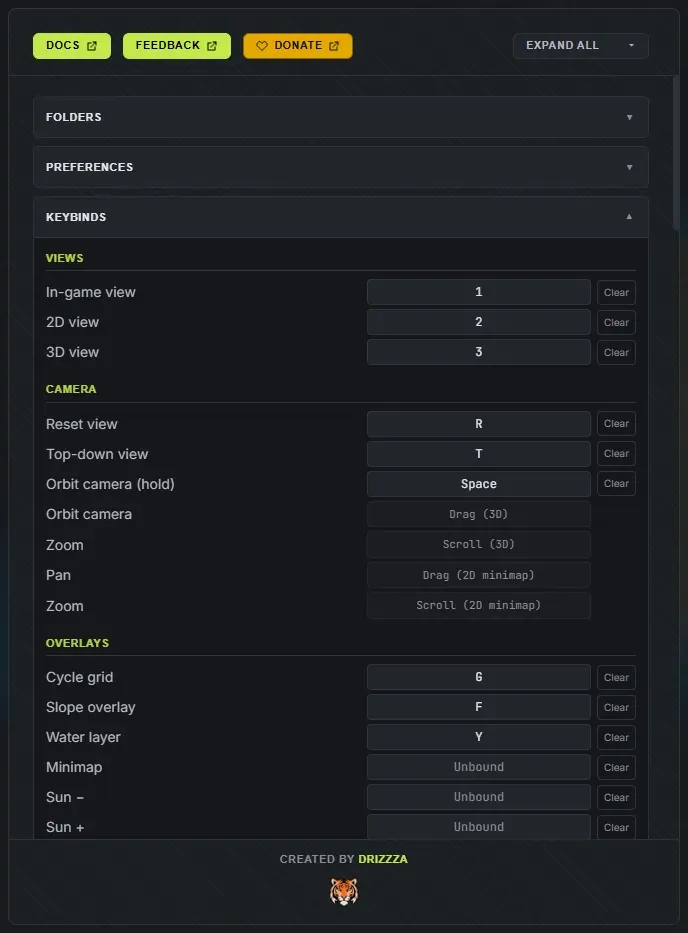
Your licence is not here. The Crucible launcher owns your account, your licence and app updates, so Settings is purely about how the app behaves.
Folders
Section titled “Folders”Shows the full path to each data folder next to the app, each with an Open button that opens it in Explorer. Use these to find files to share, back up, or delete.
- Projects folder: your saved
.hmprojprojects (autosaves sit in a subfolder). - Output folder: your exported
.map,.rawand.pngfiles. - Seeds folder: your saved
.hmseedseed files. Drop a shared.hmseedhere to import it. - Logs folder: diagnostic logs, handy if you ever need support.
Preferences
Section titled “Preferences”- Default size for added islands (10% to 120%, default 50%): the size a new island spawns at when you add one (press N, or Add island). See combine island seeds.
- Max undo states (5 to 5000, default 1000): how many undo steps to keep. A brush stroke now records only what it changed rather than a whole copy of the map, so a deep history costs far less memory than the number suggests. Raise it if you want to be able to walk a long way back.
- Autosave every (minutes) (1 to 30, default 10): how often the app saves a rolling backup. Autosave never overwrites your own saved project. See projects and autosave.
- Show tooltips (on by default): the hover bubbles that explain what a control does. Every control in the app carries one, on its name rather than on the slider track, so turn this off if you would rather work without them.
- Colorblind-safe overlay (off by default, under Accessibility): switches the slope overlay to a colourblind-friendly palette. It only recolours the analysis overlay, never the terrain itself.
- Verbose logging (off by default, under Diagnostics): records extra detail in the support log to help track down a problem. Leave it off for everyday use.
Keybinds
Section titled “Keybinds”Rebind any keyboard shortcut here. Click an action to capture a new key, with a warning if two actions clash, then Save keybinds. Nothing is applied until you save, so you can back out of a mess.
The actions are grouped the way you use them: Views, Camera, Overlays, Map & Islands, Brushes, Terrain Brush, Splat, World Layers, History, Project, Panels and Sliders. A few inputs stay fixed (the mouse buttons, and held modifiers like Alt to erase).
Reset defaults puts the whole set back. Several actions ship deliberately unbound so you can claim keys you like: brush hardness, strength and spacing, Clear layer, the falloff, stamp and symmetry cycles, Export now, Save as seed, Sun down and up, and the minimap.
Your keybinds and slider defaults save to their own file, separate from the rest of your settings, so you can hand that one file to someone else. See the keyboard shortcuts reference for the full list and defaults.
In-game view controls
Section titled “In-game view controls”Everything about the in-game view camera lives here, under Live View Controls in the app.
- Max FPS (default 120, 0 for unlimited): caps the in-game view’s frame rate. Lower it to keep your GPU quiet, raise or unlimit it if you want the smoothest possible fly-around.
- Move speed, Boost multiplier and Precision multiplier: how fast the fly camera travels normally, while holding boost, and while holding precision.
- Look speed, Look smoothing and Movement smoothing: mouse sensitivity and how much the camera eases. Both smoothing values ship at maximum, which is what gives the fly camera its heavy, cinematic feel. Drag them down (to 0 for none) if you want the camera to snap instead.
- Wheel dolly: how far each mouse-wheel notch moves you.
- Field of view (default 60 degrees).
- Invert vertical look.
- Reset camera puts every value above back to default.
The in-game view has its own camera keybinds, edited in the same section, because the fly camera uses W, A, S, D, Q and E and the rest of the app deliberately keeps off those keys. If a key you bind in the main editor clashes with a camera key, the editor flags it.
Slider Defaults
Section titled “Slider Defaults”Sets the value each slider snaps to when you double-click it. Type a new default for any slider (overridden ones show in the accent colour), or Reset one back to the built-in default. Reset all clears every custom default at once.
These defaults also seed newly generated terrain, so setting them is a way to make every new map start closer to how you like it. See the sliders reference.
Changelog
Section titled “Changelog”What changed in each version, with the version you are running badged. The same list is published at the changelog.