
Topology painting
Topology is Rust’s terrain type layer: the tags that say this ground is forest, that slope is a cliff, this strip is beach. Rust reads them to decide what belongs where. The worldgen derives them from your terrain automatically, and the topology brush is how you overrule it in a specific spot.
Open it with the topology brush button in the toolbar or press K.
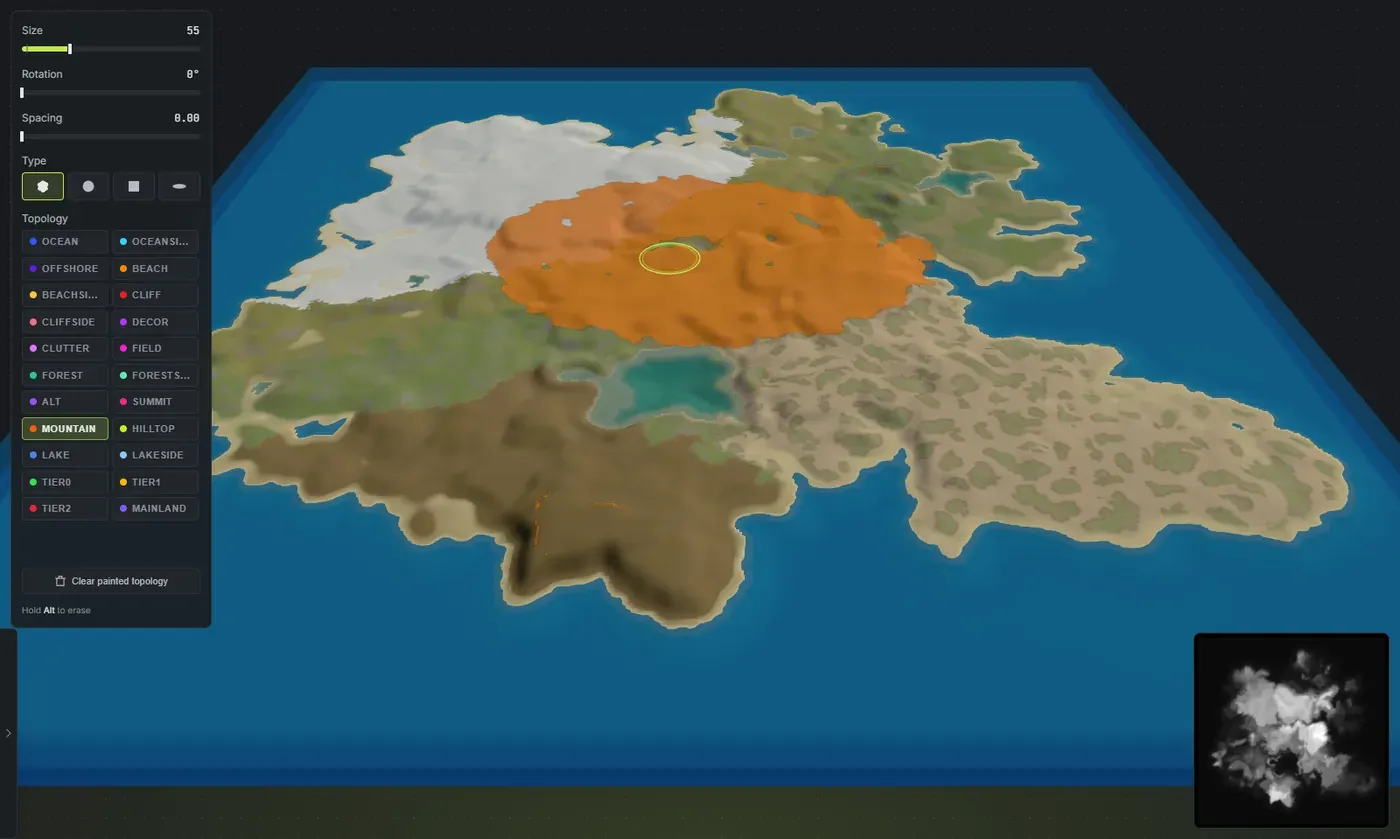
The teal there is the Forest layer: the stands the worldgen already grew, plus the stroke being painted into them.
Topology is a set of layers, not a colour
Section titled “Topology is a set of layers, not a colour”This is the one thing to get straight before you start. A ground texture is one value per spot: a cell is sand or grass. Topology is not like that. A single spot can carry several tags at once. A patch can be Cliff and Forest and Tier2 together, and that is normal.
So you never paint “topology”. You pick one layer and paint that layer on or off, and everything else in that spot is left alone.
Before you can paint
Section titled “Before you can paint”You do not have to generate first, same as the biome brush. Opening the brush never generates a world for you. On a generated map you edit the derived layers; on a bare or cleared map your first stroke starts a blank canvas carrying only the basic shoreline layers, and the rest is yours.
Where it works:
- The 3D view: always.
- The in-game view: only while Generate cliffs is off. A topology stroke moves the ground the cliffs were placed from, so the two are mutually exclusive.
- The 2D view: not at all.
Painting
Section titled “Painting”- Press K.
- Pick the layer you want from the grid.
- Paint to set it. Hold Alt to clear it.
When you pick a layer, the overlay turns that layer on so you can always see what you are editing. It is added to whatever you have ticked in the Worldgen panel rather than replacing it, so your own selection stays put. Close the brush and anything it switched on for you is switched back off.
The dock:
- Size: how wide the brush is. Topology work tends to be finer than biome work, so it starts smaller. It remembers its own size separately from the biome brush.
- Rotation and Spacing: as the other brushes.
- Type: Fingered (the default), Round, Square or Streak. Fingered lays a ragged edge that matches the generated layers and joins up across a long stroke; the other three give you a deliberate hard edge.
- Topology: all 22 layers in a grid, each with its overlay colour.
- Also paint …: the companion layers, on by default. See below. It only appears for a layer that has companions.
Hold Alt to erase, which clears the layer you have selected from the ground you paint over. It does not touch the other layers there.
Companion layers
Section titled “Companion layers”Some layers never occur alone in Rust. There is no forest without a forestside fringe around it, no beach without beachside behind it, no ocean without an oceanside band at its edge. Rust’s spawn rules read combinations of layers, so a forest you painted on its own is not a quiet inconsistency: it grows no trees, and a stretch of ocean with no oceanside renders as a hole in the water.
So the brush lays the companions down with the layer you painted, in the same shape the generator gives them:
| You paint | You also get |
|---|---|
| Forest | Forestside around the stand |
| Beach | Beachside just inland of it |
| Ocean | Oceanside straddling the waterline |
| Lake | Lakeside ringing it, and any ocean layers cleared off it |
| Cliff | Cliffside beside it |
| Decor | Clutter ringing it |
Those six are the layers that are a ring around another layer, which is the only relationship the brush can honestly reproduce from your stroke alone. Everything else on the list comes from the terrain itself rather than from a neighbouring layer, so the brush leaves it to you. Alt is the notable one: it is the third forest layer, but it follows a large-scale zoning pattern across the whole map rather than the edge of a particular stand, so painting a forest does not add it.
The fringe is ragged, not a traced outline, so a hand-painted stand sits in the map instead of looking cut out.
The companion layers are shown while you paint, added to whatever you already have ticked in the Worldgen panel, so you can see the ring your stroke just made.
Erasing works the same way round. Lift half a forest and the ring goes with the half you removed, while the stand next door keeps its own. You do not have to clean up after yourself.
Untick Also paint if you want the single raw layer with nothing added. That is the expert option: it is there for when you know exactly what you are building, and it is easy to author something Rust will not spawn on.
Handy keys:
- Tab / Shift + Tab cycle the layer you are painting.
- Alt + right-click eyedroppers a layer under the cursor, preferring one that is currently shown.
- Ctrl + Z undoes a stroke.
- Escape closes the dock.
The layers, and which ones you would actually paint
Section titled “The layers, and which ones you would actually paint”All 22 are listed, but they are not equally useful to hand-paint. The ones worth knowing:
- Forest: where trees grow. The most commonly hand-painted layer by far. Add a wood where you want one, and its forestside fringe comes with it.
- Cliff and Cliffside: the steep faces, and the ground beside them. Rust decorates these, and it is what cliff generation reads to place real cliff models.
- Beach and Beachside: the shoreline strip. Players spawn on beaches, so this matters for where people land.
- Field: open ground that grows grass and foliage.
- Ocean, Oceanside, Offshore: the sea and its shelf. These are how Rust knows where water goes.
- Lake and Lakeside: land-locked water and its ring.
- Decor and Clutter: the bands where Rust scatters rocks and where ore nodes spawn.
- Mountain, Hilltop, Summit, Alt: the high ground bands.
- Tier0, Tier1, Tier2: the difficulty bands. Set these with the tier sliders rather than by hand; they are a whole-map structure and painting them piecemeal fights the generator. The three tiers are the one exception to the layers-stack rule: painting one tier removes the other two from that spot, because a patch of ground has exactly one difficulty band. That is what lets you brush a tier boundary somewhere else instead of ending up with all three at once.
- Mainland: the interior landmass.
- Forestside: the fringe around a forest.
If you are unsure, leave it. The derived topology is a correct Rust world, and the most common good use of this brush is simply “put a forest here”.
What the brush does and does not stick to
Section titled “What the brush does and does not stick to”Same rules as the biome brush:
- Topology paint belongs to the whole map, not to an island, so it does not travel when you move an island.
- It is not sticky against a re-derive. Regenerate the map, or roll salt with Topology included, and the layers rebuild from the terrain and take your painting with them.
- It does ride undo and save into your project.
Finish the terrain, generate, then paint.
Clear painted topology
Section titled “Clear painted topology”Clear painted topology discards your painting and restores the generated topology. It does not blank the layers and it does not touch your painted biome. It is an undo for your hand work.
Why topology matters
Section titled “Why topology matters”Topology is the difference between a map that looks right and a map that plays right. It decides whether a slope gets decorated as a real cliff or left bare, whether water behaves as open ocean or an inland lake, whether ground grows a forest or stays open field, and where players spawn.
The automatic derive gets this right for generated terrain, which is the whole point of it. The brush is there for the cases where you know better than the generator.
Getting topology into RustEdit
Section titled “Getting topology into RustEdit”It comes with the map. Export a .map and the topology opens in RustEdit with the terrain, the biomes and the ground textures. See export a Rust .map file.
What each layer does
Section titled “What each layer does”Every one of the 31 topology layers, what it spawns, what it blocks and which four you need together for player spawns, is in Rust biomes and topology.
- Paint Forest first. It is the layer that most changes how a map feels, and the easiest to judge by eye.
- Use the overlay. Painting a layer you cannot see is guesswork.
- Set tiers with the sliders, not the brush.
- If you find yourself repainting the same thing after every regenerate, change the worldgen settings instead. That is what they are for.