
Projects and autosave
How do projects work?
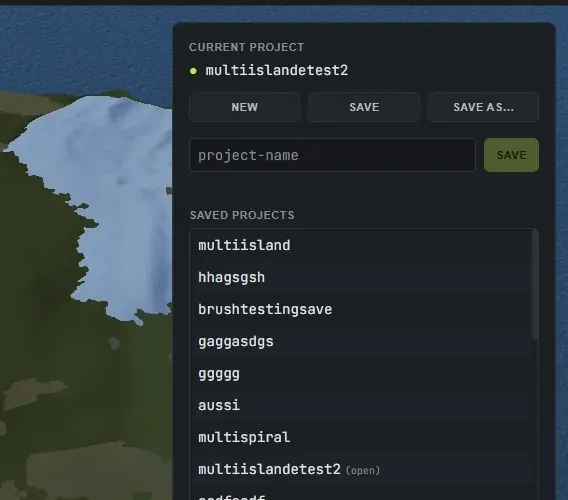
Section titled “How do projects work?”Save your work as a project and reopen it later. You can keep several projects and switch between them, so different maps stay separate. Open the Projects panel from the toolbar to create, save, rename and load projects.
- Save (Ctrl+S): re-saves the open project. The first time, it opens the Projects panel so you can name it.
- Save as new (Ctrl+Shift+S): saves the current map as a brand-new project, leaving the original untouched.
- New project (Ctrl+N): clears to a fresh random island. If you have unsaved changes, it asks first.
- Closing the app with unsaved changes asks before anything is lost: Save, Don’t save, or Cancel.
How does autosave and recovery work?
Section titled “How does autosave and recovery work?”Crucible autosaves to a separate rolling backup, so a crash or an accidental close does not lose your progress. If a newer autosave exists when you reopen, the app offers to restore it.

How do app updates work?
Section titled “How do app updates work?”The Crucible launcher handles updates now. When a new version is ready, the app’s tile and detail page in the launcher show an Update button, and launching an out-of-date app offers to update it first. You can also check on demand in the launcher’s Settings, or turn on Auto-update apps to have them install themselves. Crucible Heightmap still prompts you at startup when it finds a newer version.
Your projects, seeds and settings are kept through every update. To see what changed, open Settings in Crucible Heightmap and expand the Changelog section, or read the changelog here.